
Badge editor and live preview
Use the controls on the left and check the customer-facing result in the live preview on the right.
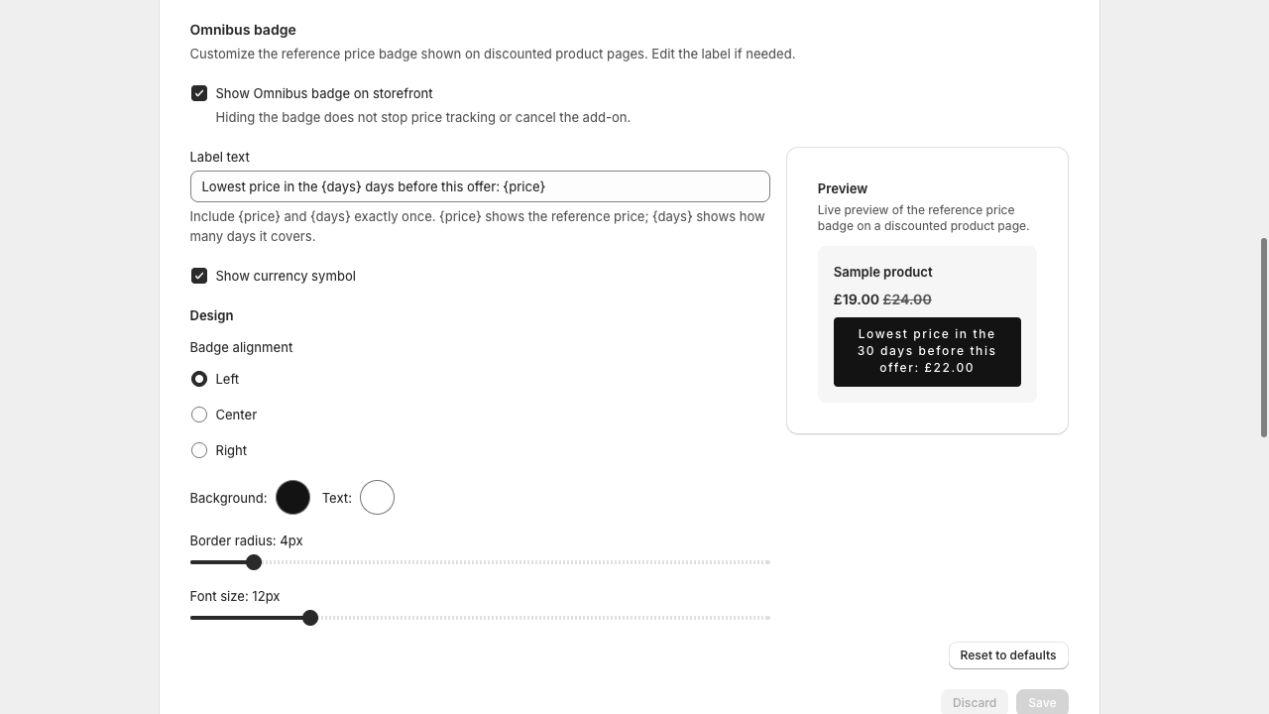
You can change the Omnibus badge without editing theme code. The EU Compliance page includes a live product-page preview so you can check the wording and styling before saving.
Open the badge editor
In GetSale, open EU Compliance.
Scroll to the Omnibus badge settings.
Make your changes and use the live preview to check the result.
Select Save in the page save bar.
Show or hide the badge
Use Show Omnibus badge on storefront to control the badge across your store.
Turning it off hides the storefront badge but does not stop price tracking or cancel the add-on.
The preview remains visible in GetSale while the badge is hidden, so you can prepare a new design before showing it again.
Disabling the add-on is different: it hides the block, clears reference-price metafields, and changes your subscription.
Edit the label
The default label is:
Lowest price in the {days} days before this offer: {price}
Your label can contain up to 120 characters and must include both placeholders exactly once:
{price}inserts the applicable reference price.{days}inserts the number of available history days, up to 30.
You can translate or rewrite the surrounding text, but do not translate or alter the placeholder names. For example:
Best price during the previous {days} days: {price}
Choose the price display
Use the currency option to choose whether the displayed amount includes the shopper’s presentment currency symbol. GetSale formats the amount for the matched market and currency.
Change alignment and styling
You can customise:
Horizontal alignment: left, centre, or right.
Background colour.
Text colour.
Corner radius.
Font size.
Badge settings apply store-wide. Placement and surrounding spacing are controlled by the Omnibus reference price block in your Shopify product template.
Save, discard, or reset
Select Save to publish your badge and market-scope changes.
Select Discard to restore the last saved settings.
Use Reset to defaults in the badge editor to restore the default wording and style, then save.
If the badge is correctly styled in the preview but not visible on a product page, review the troubleshooting guide. Visibility also depends on price-history coverage, the selected variant, theme block placement, market, and currency.