
Choose your market scope
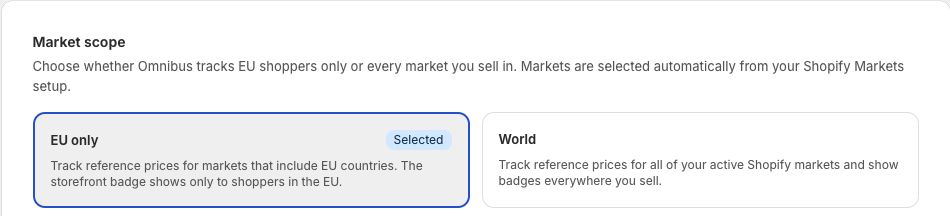
Select EU only or World. GetSale derives the covered markets automatically from your active Shopify Markets.
Place the storefront block
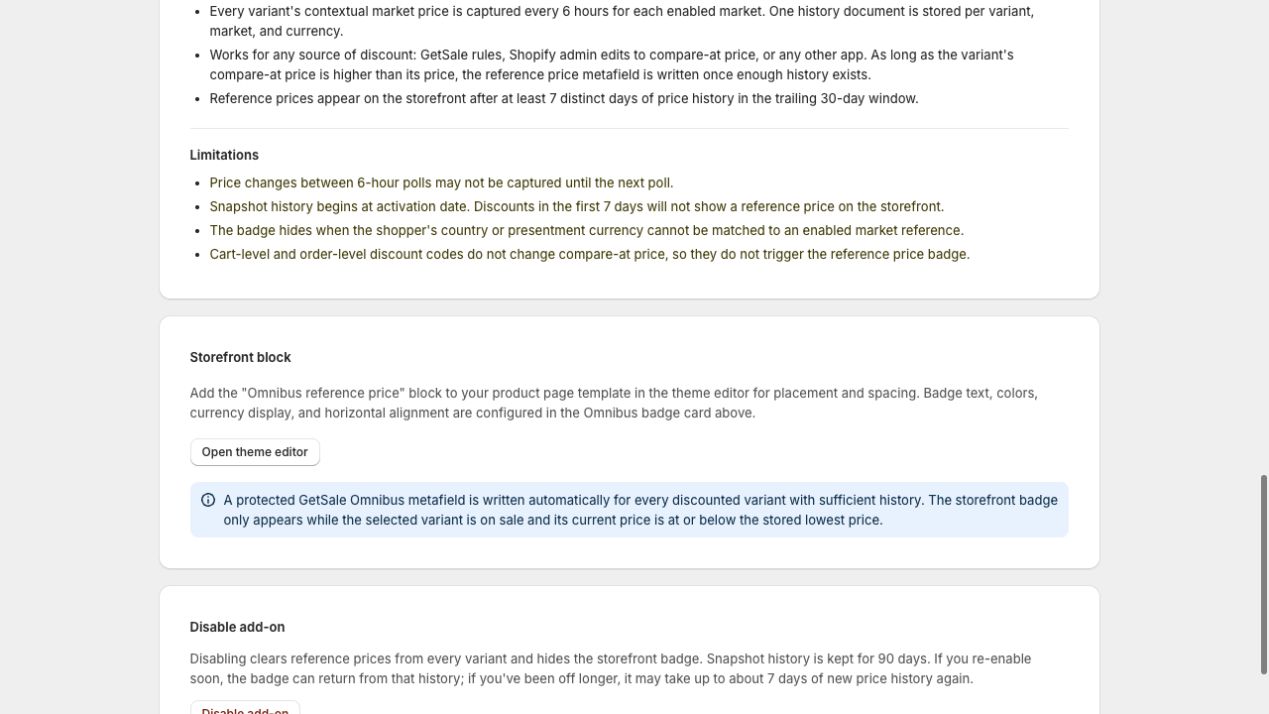
The Storefront block card opens the Shopify theme editor and explains when the protected reference price can appear.
Follow these steps to start collecting price history and display the Omnibus reference price on your product pages.
Before you begin
EU Omnibus Compliance is an add-on to a paid GetSale plan. If you use the Free plan, select a paid plan first.
Configure the countries, currencies, and active markets you sell to in Shopify Markets.
Make sure you can edit and publish your current Shopify theme.
1. Enable the add-on
In GetSale, open Plans.
Find EU Omnibus Compliance.
Select Enable add-on.
Review and approve the subscription update in Shopify.
Price collection begins after activation. Billing and the price-history warm-up run independently, so the storefront badge will not appear immediately.
2. Grant Shopify Markets access
Open EU Compliance from the GetSale navigation.
If you see Markets permission required, select Update permissions.
Approve the requested Shopify Markets access.
This permission lets GetSale identify the active market, country, and presentment currency for each reference price. Enabling the add-on from Plans does not request this permission automatically.
3. Choose the market scope
In the EU Compliance settings, choose one of the following:
EU only — tracks your active Shopify Markets that include EU countries.
World — tracks every active Shopify Market in your store.
GetSale selects markets automatically from Shopify Markets; there are no individual market checkboxes. Select Save after changing the scope. If EU only reports no matching markets, review your Shopify Markets setup.
4. Add the storefront block
From the EU Compliance page, select Open theme editor. You can also open Online Store → Themes → Customize in Shopify.
Open the product page template where you want the reference price to appear.
Add the Omnibus reference price app block to a section that accepts app blocks.
Move the block to the desired position and select Save.
The block is available on product templates only. If your store uses multiple product templates, add it to each template where the badge should appear.
5. Configure the badge
Return to EU Compliance to edit the label, currency display, alignment, colours, corner radius, and font size. Keep Show Omnibus badge on storefront enabled, then save your changes.
6. Wait for price-history coverage
GetSale needs at least seven distinct days of history for an enabled market before it can write a reference price. The Building your price history banner shows progress and an estimated ready date.
Expand Status details to view the last snapshot time and the number of tracked variants. Snapshots normally run approximately every six hours.
Check the result
After the warm-up period, preview a published product whose selected variant has a compare-at price higher than its current price. View the storefront using a country and currency covered by your selected market scope. The badge stays hidden if any eligibility condition is not met.