
Let's do it together!
Step 1: Navigate to Shopify
Go to your Shopify home page.
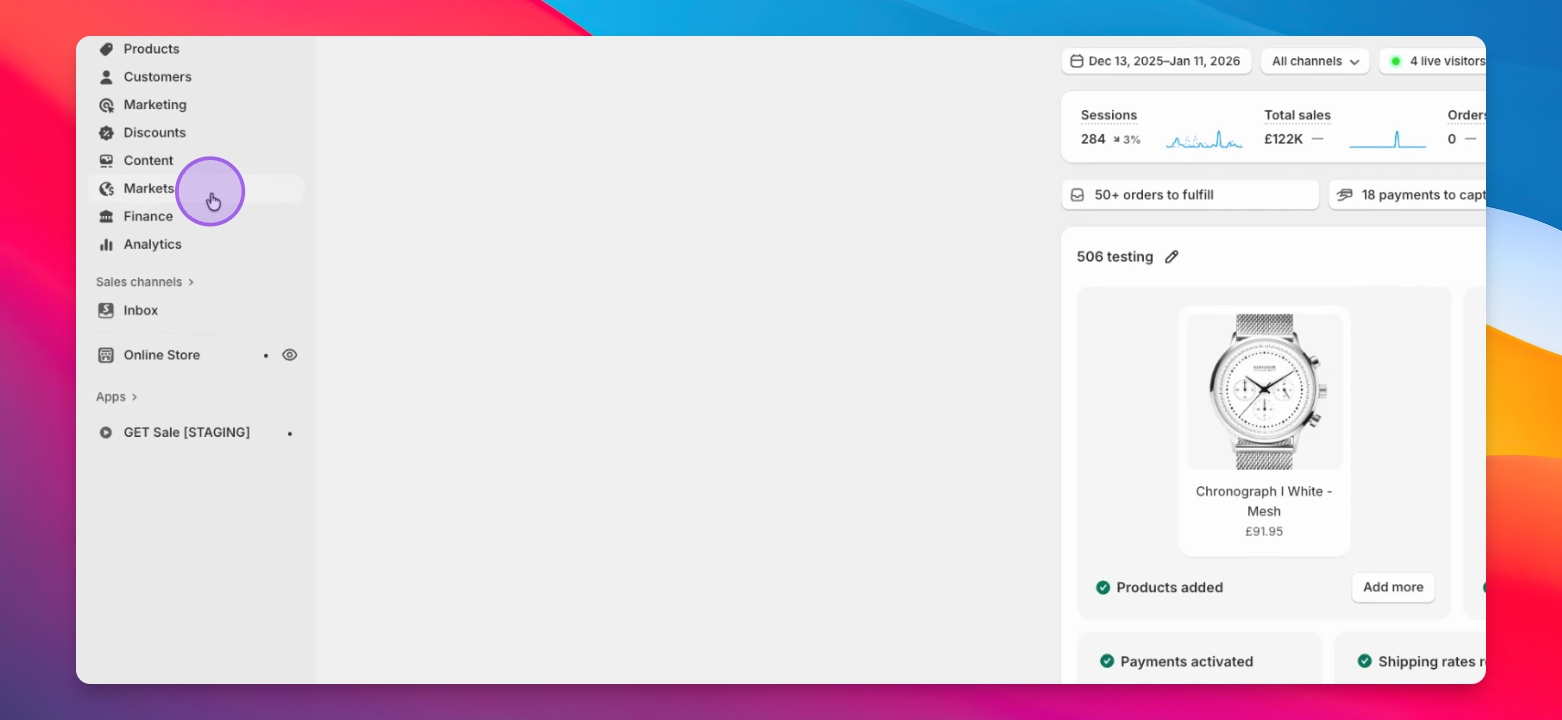
Step 2: Access the Markets tab
Find and click the Markets tab in the left panel.
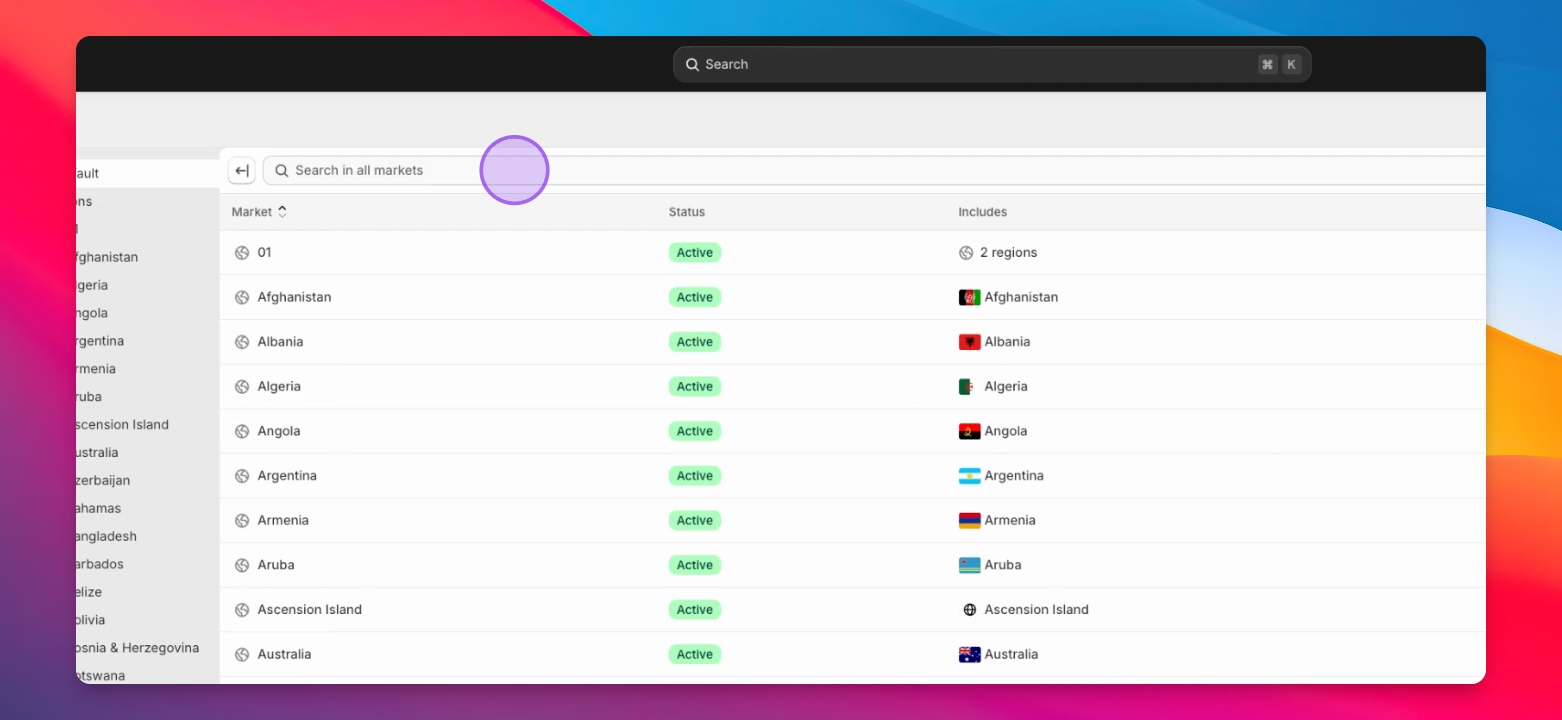
Step 3: Locate the affected country(s)
Scroll down or search for the affected country(s) and click on it.
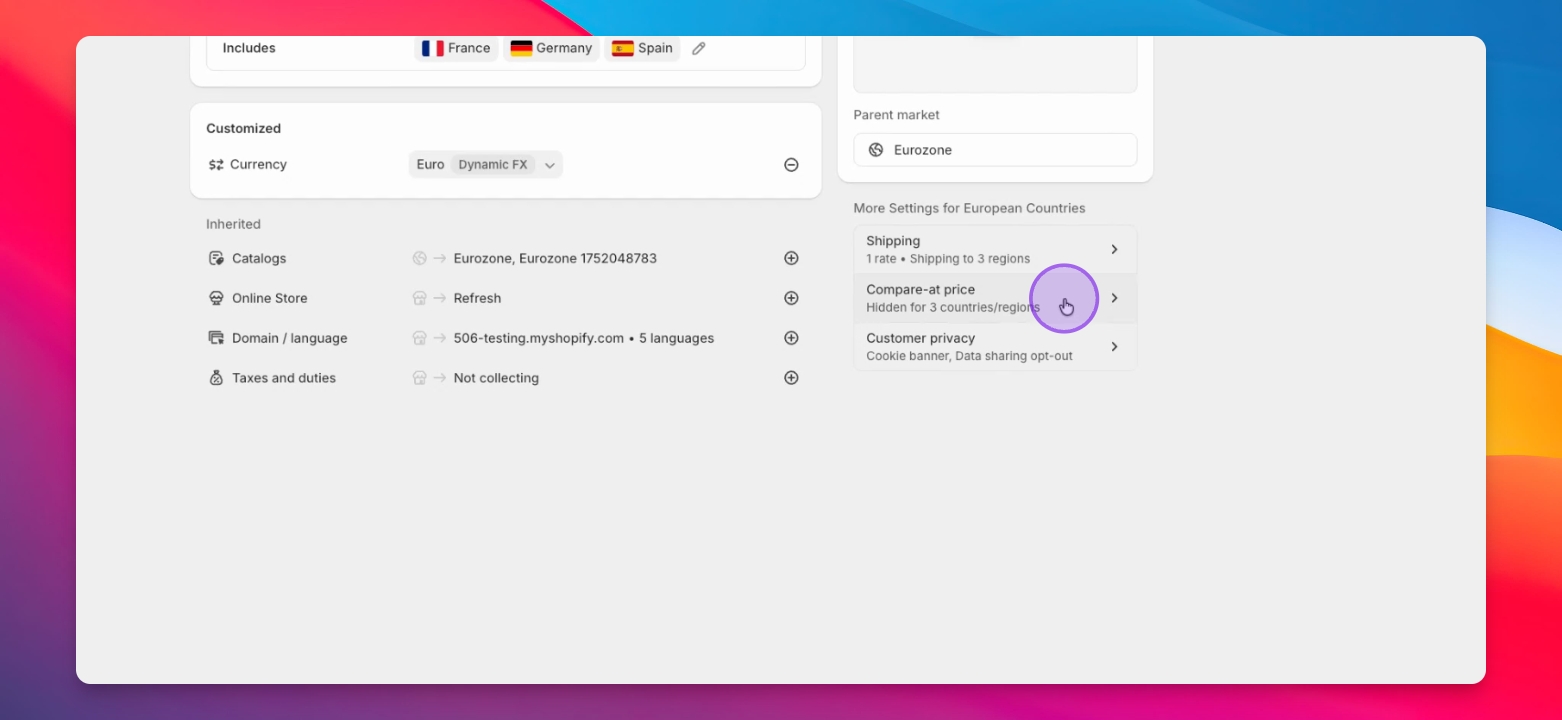
Step 4: Open More settings
Find the section labeled More settings for {your market name}.
Step 5: Adjust Compare at price setting
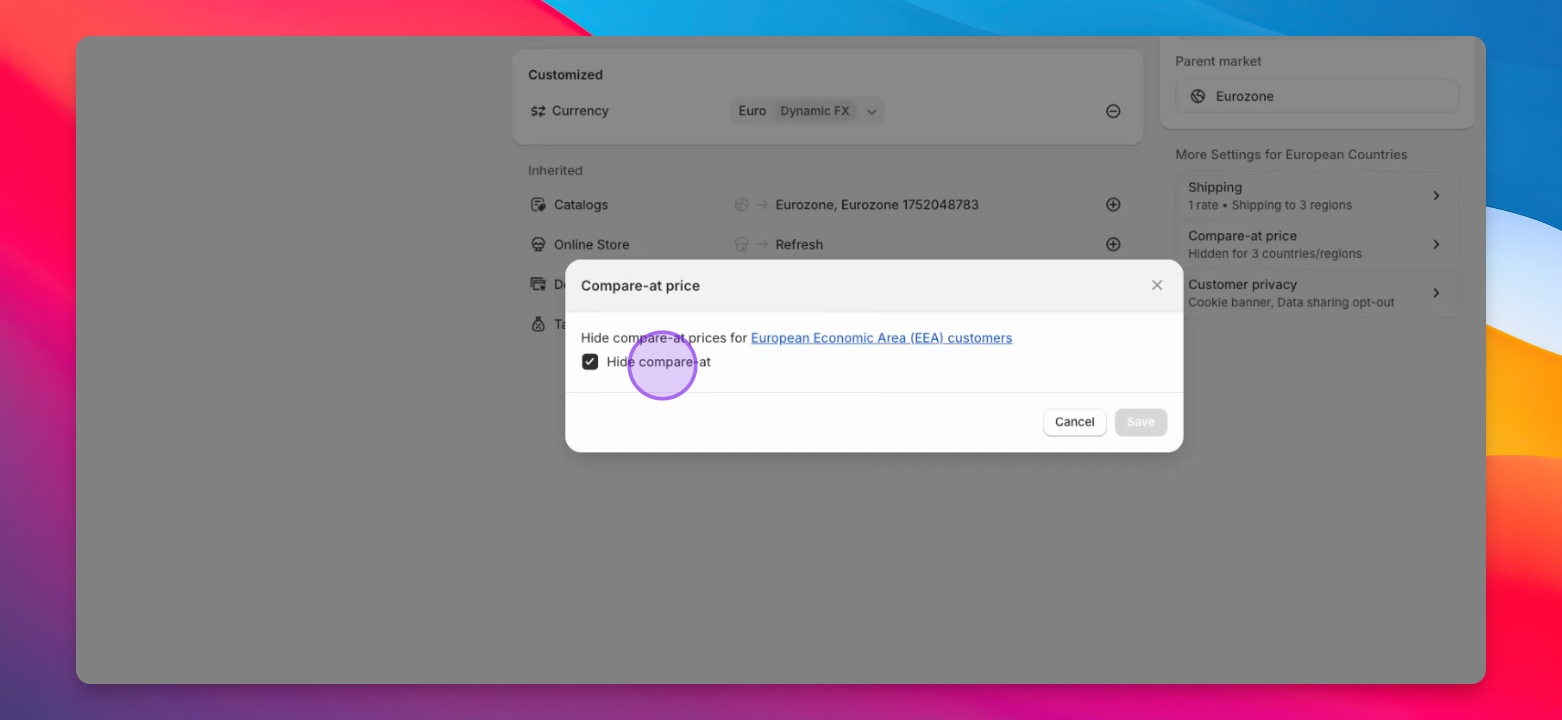
Click the setting that says Compare at price.
Step 6: Uncheck the hide option
Untick the option to show compare at prices for EEA customer regulations.
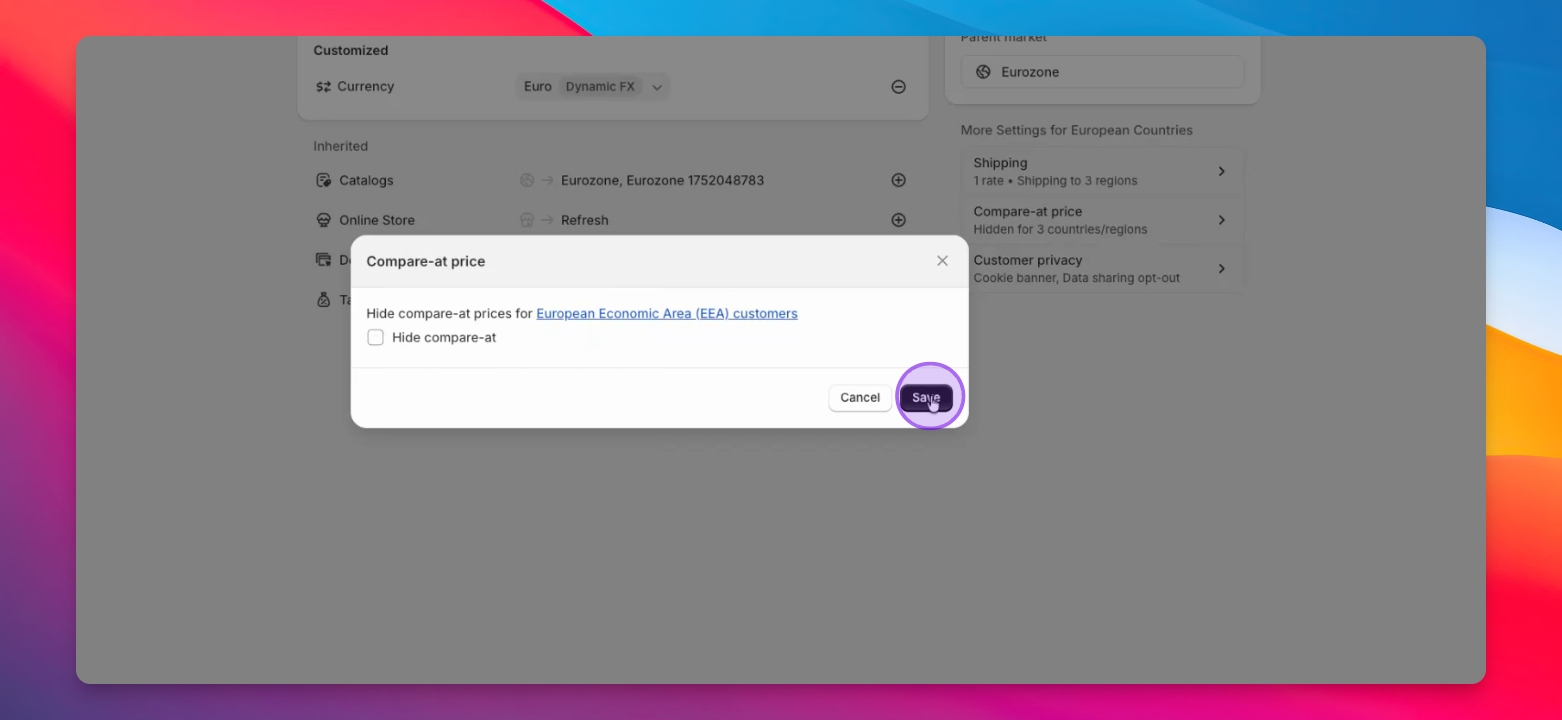
Step 7: Click Save
Save your changes.
Step 8: Check the product on the storefront
Return to the product on your storefront and switch to the affected territory to view it as a customer from that country would. You should notice the compare at prices are now displayed.